<?xml version="1.0" encoding="utf-8"?>
<feed xmlns="http://www.w3.org/2005/Atom">
  <author>
    <name>LaoQi</name>
  </author>
  <generator uri="https://hexo.io/">Hexo</generator>
  <id>https://blog.laoqiovo.com/</id>
  <link href="https://blog.laoqiovo.com/" rel="alternate"/>
  <link href="https://blog.laoqiovo.com/atom.xml" rel="self"/>
  <rights>All rights reserved 2026, LaoQi</rights>
  <subtitle>happily coding</subtitle>
  <title>LaoQi的秘密基地</title>
  <updated>2026-10-20T14:53:53.541Z</updated>
  <entry>
    <author>
      <name>LaoQi</name>
    </author>
    <content>
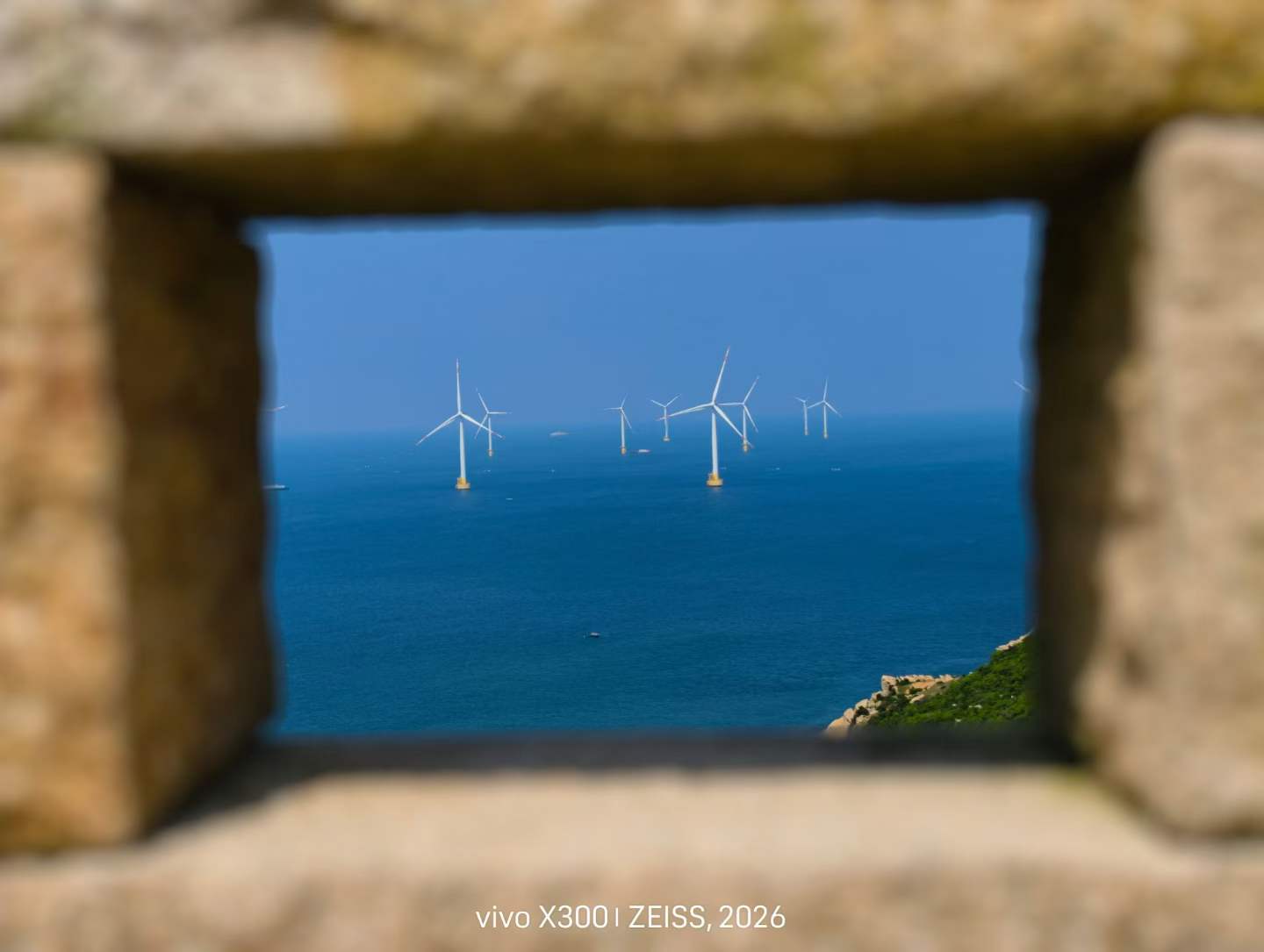
      <![CDATA[<h3 id="2026年终总结">2026年终总结</h3><p>难以想象，我居然在2026还没结束，2025年终总结还没写完的情况下，发布了2026年终总结，我真的是没事干了。</p><p>不过说起来，确实发生了一些些值得讲讲的事情，先慢慢写一些吧</p><h4 id="？月">？月</h4><p>先简单写一些吧……</p><p>今年参加了世校赛的国赛（争夺赛），我们队伍成为了分母，铜奖都没拿到，其实这个结果也属于是意料之内的，只是，怎么说好呢……</p><p>毕竟这是竞赛生涯的第一次国赛，这样的结果还是有些难受。</p><p>不过也有好的一面，这次国赛在福州，这是我第一次去南方，甚至是第一次出东三省，很多事情都很新奇有趣，算是不错的体验，唯一美中不足的就是那十月一的南方居然也会那么热……</p><img src="/image/img_tmp/pingtan1.jpg" alt="平潭照片1" width="500px"><p>另外，我真的不建议北方人吃平潭本地特色菜，真的吃不习惯，吃点正常做法的海鲜就行……</p><p><s>百香果鲍鱼，这特么是人吃的啊？</s></p>]]>
    </content>
    <id>https://blog.laoqiovo.com/2026/10/09/2026%E5%B9%B4%E7%BB%88%E6%80%BB%E7%BB%93/</id>
    <link href="https://blog.laoqiovo.com/2026/10/09/2026%E5%B9%B4%E7%BB%88%E6%80%BB%E7%BB%93/"/>
    <published>2026-10-09T15:07:09.000Z</published>
    <summary>
      <![CDATA[<h3 id="2026年终总结">2026年终总结</h3>
<p>难以想象，我居然在2026还没结束，2025年终总结还没写完的情况下，发布了2026年终总结，我真的是没事干了。</p>
<p>不过说起来，确实发生了一些些值得讲讲的事情，先慢慢写一些吧</p>
<h4]]>
    </summary>
    <title>2026年终总结</title>
    <updated>2026-10-20T14:53:53.541Z</updated>
  </entry>
  <entry>
    <author>
      <name>LaoQi</name>
    </author>
    <category term="Flutter" scheme="https://blog.laoqiovo.com/tags/Flutter/"/>
    <category term="Android" scheme="https://blog.laoqiovo.com/tags/Android/"/>
    <content>
      <![CDATA[<h1>Flutter Android 开发环境配置全记录</h1><blockquote><p>本文记录了从零开始配置 Flutter Android 开发环境的完整过程，包含踩过的坑和对应解决方案。适合有编程基础（Python / JS / Vue）但没有移动端经验的开发者参考。</p><p>系统环境：Windows，所有工具安装在 F 盘。</p></blockquote><hr><h2 id="目录">目录</h2><ol><li><a href="#%E6%95%B4%E4%BD%93%E6%80%9D%E8%B7%AF">整体思路</a></li><li><a href="#%E7%AC%AC%E4%B8%80%E6%AD%A5%E5%88%9B%E5%BB%BA%E7%9B%AE%E5%BD%95%E7%BB%93%E6%9E%84">第一步：创建目录结构</a></li><li><a href="#%E7%AC%AC%E4%BA%8C%E6%AD%A5%E9%85%8D%E7%BD%AE%E7%B3%BB%E7%BB%9F%E7%8E%AF%E5%A2%83%E5%8F%98%E9%87%8F">第二步：配置系统环境变量</a></li><li><a href="#%E7%AC%AC%E4%B8%89%E6%AD%A5%E5%AE%89%E8%A3%85-git">第三步：安装 Git</a></li><li><a href="#%E7%AC%AC%E5%9B%9B%E6%AD%A5%E5%AE%89%E8%A3%85-flutter-sdk">第四步：安装 Flutter SDK</a></li><li><a href="#%E7%AC%AC%E4%BA%94%E6%AD%A5%E5%AE%89%E8%A3%85-android-studio">第五步：安装 Android Studio</a></li><li><a href="#%E7%AC%AC%E5%85%AD%E6%AD%A5%E9%85%8D%E7%BD%AE-gradle-%E9%95%9C%E5%83%8F">第六步：配置 Gradle 镜像</a></li><li><a href="#%E7%AC%AC%E4%B8%83%E6%AD%A5%E5%85%B3%E8%81%94-flutter-%E4%B8%8E-android-sdk">第七步：关联 Flutter 与 Android SDK</a></li><li><a href="#%E7%AC%AC%E5%85%AB%E6%AD%A5%E9%AA%8C%E8%AF%81%E4%B8%8E%E8%BF%90%E8%A1%8C%E7%AC%AC%E4%B8%80%E4%B8%AA%E9%A1%B9%E7%9B%AE">第八步：验证与运行第一个项目</a></li><li><a href="#%E9%81%87%E5%88%B0%E7%9A%84%E9%97%AE%E9%A2%98%E4%B8%8E%E8%A7%A3%E5%86%B3%E6%96%B9%E6%A1%88">遇到的问题与解决方案</a></li></ol><hr><h2 id="整体思路">整体思路</h2><p>Flutter Android 开发涉及 <strong>4 套独立的网络下载</strong>，国内都需要配置镜像才能正常使用：</p><table><thead><tr><th>下载内容</th><th>镜像方案</th></tr></thead><tbody><tr><td>Flutter SDK 本体</td><td><code>FLUTTER_STORAGE_BASE_URL</code> 环境变量</td></tr><tr><td>Pub 第三方依赖包</td><td><code>PUB_HOSTED_URL</code> 环境变量</td></tr><tr><td>Gradle 依赖库（Maven）</td><td><code>init.gradle</code> 全局配置</td></tr><tr><td>Gradle 本体 ZIP</td><td><code>gradle-wrapper.properties</code> 替换下载源</td></tr></tbody></table><blockquote><p>⚠️ <strong>重要：先配镜像，再安装工具</strong>，否则下载会超时或极慢。</p></blockquote><p>默认情况下 Android Studio 相关工具会占用 C 盘 10GB 以上，建议全部安装到其他盘：</p><table><thead><tr><th>内容</th><th>默认位置</th><th>占用大小</th></tr></thead><tbody><tr><td>Android Studio IDE</td><td>C:\Program Files</td><td>~1.5 GB</td></tr><tr><td>Android SDK</td><td>C:\Users\用户名\AppData\Local\Android</td><td>~3–5 GB</td></tr><tr><td>AVD 模拟器镜像</td><td>C:\Users\用户名.android\avd</td><td>~3–8 GB</td></tr><tr><td>Gradle 缓存</td><td>C:\Users\用户名.gradle</td><td>~1–3 GB</td></tr></tbody></table><hr><h2 id="第一步：创建目录结构">第一步：创建目录结构</h2><p>在 F 盘提前建好统一的目录结构，便于后续管理：</p><figure class="highlight plaintext"><table><tr><td class="gutter"><pre><span class="line">1</span><br><span class="line">2</span><br><span class="line">3</span><br><span class="line">4</span><br><span class="line">5</span><br><span class="line">6</span><br></pre></td><td class="code"><pre><code class="hljs plaintext">F:\AndroidStudio\       ← Android Studio IDE 本体<br>F:\Android\SDK\         ← Android SDK<br>F:\Android\AVD\         ← 模拟器镜像<br>F:\Android\Gradle\      ← Gradle 缓存<br>F:\dev\flutter\         ← Flutter SDK<br>F:\dev\projects\        ← 你的项目<br></code></pre></td></tr></table></figure><blockquote><p>路径中不能含有<strong>中文</strong>和<strong>空格</strong>，否则部分工具会报路径解析错误。</p></blockquote><hr><h2 id="第二步：配置系统环境变量">第二步：配置系统环境变量</h2><p>打开方式：控制面板 → 系统 → 高级系统设置 → 环境变量 → 系统变量</p><h3 id="新建以下-4-条变量">新建以下 4 条变量</h3><table><thead><tr><th>变量名</th><th>变量值</th><th>作用</th></tr></thead><tbody><tr><td><code>FLUTTER_STORAGE_BASE_URL</code></td><td><code>https://storage.flutter-io.cn</code></td><td>Flutter SDK 下载镜像</td></tr><tr><td><code>PUB_HOSTED_URL</code></td><td><code>https://pub.flutter-io.cn</code></td><td>Pub 包管理镜像</td></tr><tr><td><code>ANDROID_AVD_HOME</code></td><td><code>F:\Android\AVD</code></td><td>模拟器存储路径</td></tr><tr><td><code>GRADLE_USER_HOME</code></td><td><code>F:\Android\Gradle</code></td><td>Gradle 缓存路径</td></tr></tbody></table><h3 id="在-Path-中新增一条">在 Path 中新增一条</h3><figure class="highlight plaintext"><table><tr><td class="gutter"><pre><span class="line">1</span><br></pre></td><td class="code"><pre><code class="hljs plaintext">F:\dev\flutter\bin<br></code></pre></td></tr></table></figure><blockquote><p>⚠️ 配置完环境变量后，必须<strong>重新开一个 PowerShell 窗口</strong>才能生效，不能在原窗口继续操作。</p></blockquote><hr><h2 id="第三步：安装-Git">第三步：安装 Git</h2><p>Flutter 依赖 Git 管理 SDK。前往 <a href="https://git-scm.com">git-scm.com</a> 下载安装。</p><p>安装时选择：<code>Git from the command line and also from 3rd-party software</code></p><p>验证安装：</p><figure class="highlight powershell"><table><tr><td class="gutter"><pre><span class="line">1</span><br></pre></td><td class="code"><pre><code class="hljs powershell">git <span class="hljs-literal">--version</span><br></code></pre></td></tr></table></figure><hr><h2 id="第四步：安装-Flutter-SDK">第四步：安装 Flutter SDK</h2><ol><li>前往 <a href="https://flutter.cn/docs/get-started/install/windows">flutter.cn</a> 下载最新稳定版 ZIP</li><li>解压到 <code>F:\dev\flutter\</code>（注意路径无中文、无空格）</li><li>已将 <code>F:\dev\flutter\bin</code> 加入 Path（第二步已完成）</li></ol><p>验证安装（新开 PowerShell）：</p><figure class="highlight powershell"><table><tr><td class="gutter"><pre><span class="line">1</span><br></pre></td><td class="code"><pre><code class="hljs powershell">flutter <span class="hljs-literal">--version</span><br></code></pre></td></tr></table></figure><hr><h2 id="第五步：安装-Android-Studio">第五步：安装 Android Studio</h2><h3 id="5-1-安装-IDE-本体">5.1 安装 IDE 本体</h3><p>前往 <a href="https://developer.android.google.cn/studio">developer.android.google.cn/studio</a> 下载安装包。</p><p>安装向导第二步 <strong>Choose Install Location</strong> 改为：</p><figure class="highlight plaintext"><table><tr><td class="gutter"><pre><span class="line">1</span><br></pre></td><td class="code"><pre><code class="hljs plaintext">F:\AndroidStudio<br></code></pre></td></tr></table></figure><h3 id="5-2-首次启动配置-SDK-路径">5.2 首次启动配置 SDK 路径</h3><p>首次启动进入 Setup Wizard，在 SDK 路径一栏填写：</p><figure class="highlight plaintext"><table><tr><td class="gutter"><pre><span class="line">1</span><br></pre></td><td class="code"><pre><code class="hljs plaintext">F:\Android\SDK<br></code></pre></td></tr></table></figure><p>勾选安装：</p><ul><li>Android SDK</li><li>Android SDK Platform-Tools</li><li>Android Emulator</li></ul><h3 id="5-3-安装-Flutter-插件">5.3 安装 Flutter 插件</h3><p>Settings → Plugins → 搜索 <code>Flutter</code> → Install</p><blockquote><p>Dart 插件会随 Flutter 自动安装，安装完成后重启 Android Studio。</p></blockquote><h3 id="5-4-验证-SDK-路径">5.4 验证 SDK 路径</h3><p>Settings → Languages &amp; Frameworks → Android SDK → 确认 SDK Location 为 <code>F:\Android\SDK</code></p><hr><h2 id="第六步：配置-Gradle-镜像">第六步：配置 Gradle 镜像</h2><p><code>flutter run</code> 首次编译时会通过 Gradle 下载大量依赖，国内不配镜像会极慢甚至超时。</p><h3 id="全局-init-gradle（全局生效，但可能导致gradle冲突）">全局 init.gradle（全局生效，但可能导致gradle冲突）</h3><p>新建文件 <code>F:\Android\Gradle\init.gradle</code>，写入：</p><figure class="highlight groovy"><table><tr><td class="gutter"><pre><span class="line">1</span><br><span class="line">2</span><br><span class="line">3</span><br><span class="line">4</span><br><span class="line">5</span><br><span class="line">6</span><br><span class="line">7</span><br></pre></td><td class="code"><pre><code class="hljs groovy">allprojects &#123;<br>    repositories &#123;<br>        maven &#123; url <span class="hljs-string">&#x27;https://maven.aliyun.com/repository/google&#x27;</span> &#125;<br>        maven &#123; url <span class="hljs-string">&#x27;https://maven.aliyun.com/repository/central&#x27;</span> &#125;<br>        maven &#123; url <span class="hljs-string">&#x27;https://maven.aliyun.com/repository/gradle-plugin&#x27;</span> &#125;<br>    &#125;<br>&#125;<br></code></pre></td></tr></table></figure><blockquote><p>因为第二步已将 <code>GRADLE_USER_HOME</code> 设为 <code>F:\Android\Gradle\</code>，Gradle 会自动读取该目录下的 <code>init.gradle</code>。</p></blockquote><h3 id="可选：（当上一步冲突导致下载失败时）Gradle-本体下载加速">可选：（当上一步冲突导致下载失败时）Gradle 本体下载加速</h3><p>如果首次 <code>flutter run</code> 卡在下载 Gradle ZIP，打开项目中的：</p><figure class="highlight plaintext"><table><tr><td class="gutter"><pre><span class="line">1</span><br></pre></td><td class="code"><pre><code class="hljs plaintext">android/gradle/wrapper/gradle-wrapper.properties<br></code></pre></td></tr></table></figure><p>将 <code>distributionUrl</code> 一行替换为（版本号保持原文件一致）：</p><figure class="highlight properties"><table><tr><td class="gutter"><pre><span class="line">1</span><br></pre></td><td class="code"><pre><code class="hljs properties"><span class="hljs-attr">distributionUrl</span>=<span class="hljs-string">https\://mirrors.cloud.tencent.com/gradle/gradle-8.7-all.zip</span><br></code></pre></td></tr></table></figure><hr><h4 id="版本不稳定导致出现不兼容时">版本不稳定导致出现不兼容时</h4><p>推荐改成稳定版本</p><figure class="highlight plaintext"><table><tr><td class="gutter"><pre><span class="line">1</span><br><span class="line">2</span><br><span class="line">3</span><br><span class="line">4</span><br></pre></td><td class="code"><pre><code class="hljs plaintext">AGP: 8.6.0<br>Gradle: 8.7<br>Kotlin: 1.9.22<br>JDK: 17<br></code></pre></td></tr></table></figure><p>同样需要先打开项目中的：</p><figure class="highlight plaintext"><table><tr><td class="gutter"><pre><span class="line">1</span><br></pre></td><td class="code"><pre><code class="hljs plaintext">android/gradle/wrapper/gradle-wrapper.properties<br></code></pre></td></tr></table></figure><p>将 <code>distributionUrl</code> 一行替换为（版本号保持原文件一致）：</p><figure class="highlight properties"><table><tr><td class="gutter"><pre><span class="line">1</span><br></pre></td><td class="code"><pre><code class="hljs properties"><span class="hljs-attr">distributionUrl</span>=<span class="hljs-string">https\://mirrors.cloud.tencent.com/gradle/gradle-8.7-all.zip</span><br></code></pre></td></tr></table></figure><p>把<code>android/settings.gradle.kts</code>内的<code>plugins</code>部分改成如下：</p><figure class="highlight kts"><table><tr><td class="gutter"><pre><span class="line">1</span><br><span class="line">2</span><br><span class="line">3</span><br><span class="line">4</span><br><span class="line">5</span><br></pre></td><td class="code"><pre><code class="hljs kts">plugins &#123;<br>    id(<span class="hljs-string">&quot;dev.flutter.flutter-plugin-loader&quot;</span>) version <span class="hljs-string">&quot;1.0.0&quot;</span><br>    id(<span class="hljs-string">&quot;com.android.application&quot;</span>) version <span class="hljs-string">&quot;8.6.0&quot;</span> apply <span class="hljs-literal">false</span><br>    id(<span class="hljs-string">&quot;org.jetbrains.kotlin.android&quot;</span>) version <span class="hljs-string">&quot;1.9.22&quot;</span> apply <span class="hljs-literal">false</span><br>&#125;<br></code></pre></td></tr></table></figure><h2 id="第七步：关联-Flutter-与-Android-SDK">第七步：关联 Flutter 与 Android SDK</h2><h3 id="7-1-告诉-Flutter-Android-SDK-的位置">7.1 告诉 Flutter Android SDK 的位置</h3><figure class="highlight powershell"><table><tr><td class="gutter"><pre><span class="line">1</span><br></pre></td><td class="code"><pre><code class="hljs powershell">flutter config <span class="hljs-literal">--android-sdk</span> F:\Android\SDK<br></code></pre></td></tr></table></figure><h3 id="7-2-接受-Android-许可证">7.2 接受 Android 许可证</h3><figure class="highlight powershell"><table><tr><td class="gutter"><pre><span class="line">1</span><br></pre></td><td class="code"><pre><code class="hljs powershell">flutter doctor <span class="hljs-literal">--android-licenses</span><br></code></pre></td></tr></table></figure><p>逐一输入 <code>y</code> 回车确认所有许可证。</p><hr><h2 id="第八步：验证与运行第一个项目">第八步：验证与运行第一个项目</h2><h3 id="8-1-运行-flutter-doctor">8.1 运行 flutter doctor</h3><figure class="highlight powershell"><table><tr><td class="gutter"><pre><span class="line">1</span><br></pre></td><td class="code"><pre><code class="hljs powershell">flutter doctor<br></code></pre></td></tr></table></figure><p>需要以下三项显示绿色 ✓：</p><figure class="highlight plaintext"><table><tr><td class="gutter"><pre><span class="line">1</span><br><span class="line">2</span><br><span class="line">3</span><br></pre></td><td class="code"><pre><code class="hljs plaintext">[✓] Flutter<br>[✓] Android toolchain<br>[✓] Android Studio<br></code></pre></td></tr></table></figure><blockquote><p>Chrome 和 Visual Studio 报红叉可以忽略，不影响 Android 开发。</p></blockquote><h3 id="8-2-创建-Android-模拟器（AVD）">8.2 创建 Android 模拟器（AVD）</h3><p>Android Studio → Tools → Device Manager → <code>+</code> → Create Virtual Device</p><p>推荐配置：</p><ul><li>Hardware：<strong>Pixel 6</strong></li><li>System Image：<strong>API 34（Android 14），Google Play 版</strong></li><li>RAM：建议 4GB</li></ul><h3 id="8-3-创建并运行第一个项目">8.3 创建并运行第一个项目</h3><figure class="highlight powershell"><table><tr><td class="gutter"><pre><span class="line">1</span><br><span class="line">2</span><br><span class="line">3</span><br></pre></td><td class="code"><pre><code class="hljs powershell">flutter create my_app<br><span class="hljs-built_in">cd</span> my_app<br>flutter run<br></code></pre></td></tr></table></figure><blockquote><p>首次运行会下载 Gradle 本体，国内大约需要 5~15 分钟，耐心等待即可。</p></blockquote><hr><h2 id="遇到的问题与解决方案">遇到的问题与解决方案</h2><h3 id="❌-问题：flutter-doctor-android-licenses-报错-sdkmanager-not-found">❌ 问题：flutter doctor --android-licenses 报错 sdkmanager not found</h3><p><strong>报错信息：</strong></p><figure class="highlight plaintext"><table><tr><td class="gutter"><pre><span class="line">1</span><br><span class="line">2</span><br></pre></td><td class="code"><pre><code class="hljs plaintext">Android sdkmanager not found. Update to the latest Android SDK and ensure that<br>the cmdline-tools are installed to resolve this.<br></code></pre></td></tr></table></figure><p><strong>原因：</strong> Android SDK Command-line Tools 没有安装，<code>flutter doctor --android-licenses</code> 依赖该工具。</p><p><strong>解决方案：</strong></p><ol><li>打开 Android Studio</li><li>Settings → Languages &amp; Frameworks → Android SDK → 点击 <strong>SDK Tools</strong> 标签</li><li>勾选 <strong>Android SDK Command-line Tools (latest)</strong></li><li>点击 OK，等待下载完成</li><li>重新运行：</li></ol><figure class="highlight powershell"><table><tr><td class="gutter"><pre><span class="line">1</span><br></pre></td><td class="code"><pre><code class="hljs powershell">flutter doctor <span class="hljs-literal">--android-licenses</span><br></code></pre></td></tr></table></figure><hr><h2 id="最终目录结构">最终目录结构</h2><p>配置完成后，F 盘结构如下：</p><figure class="highlight plaintext"><table><tr><td class="gutter"><pre><span class="line">1</span><br><span class="line">2</span><br><span class="line">3</span><br><span class="line">4</span><br><span class="line">5</span><br><span class="line">6</span><br><span class="line">7</span><br><span class="line">8</span><br><span class="line">9</span><br><span class="line">10</span><br></pre></td><td class="code"><pre><code class="hljs plaintext">F:\<br>├── AndroidStudio\          ← IDE 本体<br>├── Android\<br>│   ├── SDK\                ← Android SDK + cmdline-tools<br>│   ├── AVD\                ← 模拟器镜像<br>│   └── Gradle\<br>│       └── init.gradle     ← 全局 Gradle 镜像配置<br>└── dev\<br>    ├── flutter\            ← Flutter SDK<br>    └── projects\           ← 你的项目<br></code></pre></td></tr></table></figure><hr><h2 id="参考资源">参考资源</h2><ul><li>Flutter 中文文档：<a href="https://flutter.cn">flutter.cn</a></li><li>Flutter 中国镜像说明：<a href="https://flutter.cn/community/china">flutter.cn/community/china</a></li><li>Android Studio 下载：<a href="https://developer.android.google.cn/studio">developer.android.google.cn/studio</a></li><li>阿里云 Maven 镜像：<a href="https://maven.aliyun.com">maven.aliyun.com</a></li></ul><hr><p><em>作者：LaoQi ·</em> <em><a href="https://blog.qitongxue.online/">LaoQi的秘密基地</a></em></p>]]>
    </content>
    <id>https://blog.laoqiovo.com/2026/06/14/Flutter-Android-%E5%BC%80%E5%8F%91%E7%8E%AF%E5%A2%83%E9%85%8D%E7%BD%AE%E5%85%A8%E8%AE%B0%E5%BD%95/</id>
    <link href="https://blog.laoqiovo.com/2026/06/14/Flutter-Android-%E5%BC%80%E5%8F%91%E7%8E%AF%E5%A2%83%E9%85%8D%E7%BD%AE%E5%85%A8%E8%AE%B0%E5%BD%95/"/>
    <published>2026-06-14T10:36:10.000Z</published>
    <summary>
      <![CDATA[<h1>Flutter Android 开发环境配置全记录</h1>
<blockquote>
<p>本文记录了从零开始配置 Flutter Android 开发环境的完整过程，包含踩过的坑和对应解决方案。适合有编程基础（Python / JS /]]>
    </summary>
    <title>Flutter Android 开发环境配置全记录</title>
    <updated>2026-06-15T10:18:54.611Z</updated>
  </entry>
  <entry>
    <author>
      <name>LaoQi</name>
    </author>
    <category term="思考" scheme="https://blog.laoqiovo.com/tags/%E6%80%9D%E8%80%83/"/>
    <category term="ToDo" scheme="https://blog.laoqiovo.com/tags/ToDo/"/>
    <content>
      <![CDATA[<div class="hbe hbe-container" id="hexo-blog-encrypt"     data-hbe-format="4"     data-wpm="密码错误，请重试。"     data-whm="密码错误，请重试。"     data-salt="4d17260de54efbce65dd1c92f7c61bdedee02922494a1e1d81c079304138c614"     data-nonce="1433f3911755c430f7e180fc"     data-kdf-iterations="250000"     data-auto-save="true">  <script id="hbeData" type="hbeData">    b4c6946b3479ae9a342b47bc8ee5f98bdcfdca1737cb1461282550d850e7e0e1ed2feabfbcc4174c9af074dcadffc8e4ce4c49c58dc110eb6db25c6022aebf3398a5f09c3dd96bb87289ce0612a85fdb1b2628c5e861f9ce3a84d1a1c7ec19d638ad063abd9079dee6e7924ed3fd0e4d807fd50394b52dfdead52b1dc6124b4419688ee58118cd2bc40b3639859f2d9a8233ef1a1d728b9c6dcb7def2dab29713584ac9a32dc25777164defb33eb33a576aeae1d2acff803561c2a42f9d822e5aeb046c6c4994373b98c84d33acc5641f5154320ab4696525e43c84a2ad268ab25da398a2be118d4e47eebd64851a9d77d716e46e8a88f07c0484d752bc7cf722c201c0e6cc76e5da75001e8e019b94a8f1569b54fe5023aaf7139ffb8a2f91d2fe6aeea0281f63bc5be68da9467849514aaabcee505cdb236198b258d5bfa82a63a4156940df7b105fa9d23dc26c00b837151373543c48cf4eaa0d7b13dde4bce6815d86df02b504b1cff282674ab3efbaf7bd1c1b74ef578e053d2858932ac8304b8e2ae610ca46ca014da88aa444488454dbbbffd77a3ca9ea3307ee12bda9c0505d3b3da0f5950c367a72241a487051128d5f668ae19370d1b1781d46e08fb15f8403d57259ba18010f3b8ea61c8453f9e13538869fce68021d793976d49243bdcb635d1ddfc3bffc2267d0f57f8465b3b435f2618a4197119ed80d858fdf87cd782284eab9648860c259710f65676921fc8563fcbbfd4f0895485dfde7aca6bd147462240dffb323abeb8bc4e34a8050043ce30d0fa940c58a0de3b1cad8009f1856ebeefbefb4df170a7407044a131a8e8d62ab5db5781b2e72cb5d65e35dd9ad88a70511c888a7b2a8c486814cd4668ec5ced2f607ac38be4dcc686d3de8543d7ef4441f48e4c5d0d06763b43a74b257db403f4b8b23430e635cc287a52a000b257d950273ed06b8ea6b4c16831cac390df011fac5784272bb601647bbbdda050fe5073948d3ad6e815d425a1b4cf716f9a997e93b7c851a521c18acdf0d7bd7fd818d95caff578738dbf327215d88d7ecd4bfb47e29836f1e4bd3ac5fd5a3fe3e897ee73fde188f1685940199afbb1b0bee49b5194990f01674ddd8c58074268f828c14a5dff9f6fbc9782d98452216e3d99285327e1cfe9dc19585ea9d772fa41e708137e4f41992ec83c7e0dc2513c80965109d7e07a94ea0f5aabc53d7ec71ed6b81fec3cb0925e85e78c28b56a57e25fa58f0f6ddfd06bb1a9cbedc0d1aee764c0a43e1f42d5023471b481c8c403b978a7e461f6e8ff12bda1cdc43999c1a6eaa2d2eee9d6cf8e600094bba828bbaeaa241127e9f4919c6cb94359d9b7558a833728112267c177cb1952dc4d546fca83b6589117f18448f55621df4db9bab1dfa9c6ff1c933efd23c0f97accf77c2e415de1acd48d8fd08efdc682caaae15dee2154ddc555ed11824e7740255b1fac7fd2f58ffb566e6ca664742dbc58  </script>  <div class="hbe hbe-content">    <form id="hbeForm" class="hbe hbe-form" onsubmit="return false">      <div class="hbe hbe-input hbe-input-default">      <input class="hbe hbe-input-field hbe-input-field-default" type="password" id="hbePass">      <label class="hbe hbe-input-label hbe-input-label-default" for="hbePass">        <span class="hbe hbe-input-label-content hbe-input-label-content-default">您好, 这里需要密码.</span>      </label>    </div>      <button class="hbe hbe-button" type="submit">解密</button>      <div class="hbe hbe-error" role="alert" aria-live="polite"></div>    </form>  </div></div><script data-pjax src="/lib/hbe.9a88ff0505.js"></script><link href="/css/hbe.style.css" rel="stylesheet" type="text/css">]]>
    </content>
    <id>https://blog.laoqiovo.com/2026/05/15/%E6%83%B3%E5%86%99%E7%9A%84%E4%B8%80%E4%BA%9B%E4%B8%9C%E8%A5%BF/</id>
    <link href="https://blog.laoqiovo.com/2026/05/15/%E6%83%B3%E5%86%99%E7%9A%84%E4%B8%80%E4%BA%9B%E4%B8%9C%E8%A5%BF/"/>
    <published>2026-05-15T12:29:51.000Z</published>
    <summary>这里被加密了，不过如果你认识我，可以联系我要访问密码.</summary>
    <title>想写的一些东西</title>
    <updated>2026-05-20T10:46:39.708Z</updated>
  </entry>
  <entry>
    <author>
      <name>LaoQi</name>
    </author>
    <category term="年终总结" scheme="https://blog.laoqiovo.com/tags/%E5%B9%B4%E7%BB%88%E6%80%BB%E7%BB%93/"/>
    <content>
      <![CDATA[<h2 id="2025年终总结">2025年终总结</h2><p>没想到25年的年终总结能拖到26年4月，实在有些忍俊不禁。</p><p>最近把新的博客搭建成功了，过去的文章想到整理出来有些麻烦，于是就先把这个年终总结写出来吧。</p><p>说起25年，真是有些颠沛流离，用这个词或许不大准确但的确能表达出一些我的学习经历。</p><h4 id="1月">1月</h4><p>这段时间确实没什么好说的，24年12月末的时候学校开了元旦晚会，我为我们B4楼设计了节目单，还挂到了网站上，记得那时候因为访问量过大，为了保证访问效果，还特地给云主机升了配置，那几天，最高峰值访问的流量有1G左右，接着元旦晚会第二天我就去打印了期末复习题，连轴转啊。</p><p>1月中的时候拿到了当时大数据比赛的证书，还给无畏契约买了第一个皮肤，是猫猫ak，可爱捏。<br>后面还试着用Godot跟着教程搓了半个小游戏，虽然后面放弃了就是了。</p><p>显示器是什么时候买的来着，好像也是24年12月末，因为没写24年年终总结，那就放在这里说说吧，那时候参加了大数据比赛，拿了省二，有了评选国奖学金的资格，本来没保什么希望，因为我的期末成绩确实算不上特别优秀，不过就因为这个省赛给我加了很多分，就这样评选上了，真的没想到。</p><p><s>当初还因为这件事被班里的同学蛐蛐了，也能理解，但是心里就是很不爽啊！</s><br>( ￣皿￣)/</p><p>我也一直认为只是运气好，不，这就是运气好吧。</p><p>拿到奖学金后，我就买了一个30寸的曲面显示器，一开始因为用的是dp转typec的转接头，会偶尔黑屏，后面换了直通的线就没问题了。</p><p>一月末的时候，租了台mc的服务器和朋友玩，这个服务器后面也是“颠沛流离”啊</p><p>宿舍断电了，剩下的明天再写。</p><h3 id="2月">2月</h3><p>2月份的时候，月初要回老家，中途在哈尔滨落脚了一晚，吃了顿烧烤，着实美味。</p><p>老家在黑龙江农村，日常就是零下二三十度的样子，每天就是玩雪、玩冰，带着亲戚家孩子打游戏。<br>记得期间小姨夫还开车，后面用绳子拉着我们几个孩子坐在雪轮胎上，很爽。</p><p>中旬的时候，忘记是要准备比赛还是干什么来着，反正呆了几天就提前回大连了，不过中途还是又去了趟哈尔滨，逛了逛景点。</p><p>2月14日的时候 看完了《败犬女主》的动漫，记忆犹新，很有趣的故事</p><p>翻了翻相册和朋友圈，发现2月还真做了不少事。<br>期间做了游戏《彼方的她》的同人项目，在github上开源了，还做了这个游戏的壁纸，在小黑和写了几篇文章，获得了不少关注。</p><h3 id="3月">3月</h3><p>3月的时候就回学校了，为了准备比赛项目，去了大连理工长见识。<br>在此之前还使用deepseek+dify实现ai角色扮演，deepseek＋astrbot＋napcat接入qq。<br>现在看看，这astrbot＋napcat不就是龙虾吗。</p><p>3月25日：第一代511正式解散。<br><img src="/image/img_tmp/511.jpg" alt="511合影" width="500px"><br>大家在一起备赛2年，最后只剩下了比赛的几位关键同学，其他同学都被优化了。<br>……有些悲伤，具体的有空再说我们的故事吧。</p><h3 id="4月">4月</h3><p>四月初的时候，市赛开始了，经历了这么久的长跑，终于到了第一次验收结果的时候。<br>结果就是市赛第二，进了省赛。不算特别优秀的名次，但还是比较有激励作用。</p><p>比较有趣的是，比赛前一天晚上，出去吃了顿好的，接着就因为酒店的原因折腾到后半夜才睡着。<br>比赛的承办校在山里，是真正意义上的山里，三面环山的那种，所以生态很好，甚至边上能看到鹿。</p><p>4月中旬，去看了《我的世界》电影，虽然网上的评价有些褒贬不一，但我还是觉得很有趣，有很多梗和致敬，让人会心一笑，个人觉得还蛮有趣的。</p><p>剩下的时间里，没提到的就基本都是在备赛，期间和队友每天磨合，训练，修改，还算充实。</p><h3 id="5月">5月</h3><p>5月，相对来说就很松弛了，期间就一直在准备省赛了，期间把备赛室的一台电脑作为服务器，在杯备赛室里玩mc，每天晚上都玩。<br>偶尔我们几个的家长还会来送些吃的，我们就在备赛室里聚餐，这些话就只敢在毕业之后现在说了哈哈哈。<br><s>不过我怀疑老师早就知道了，不过因为不太过分就没管我们</s></p><h3 id="6月">6月</h3><p>6月，是个好月份。</p><p>我在6月3日成年啦。</p><p>不过因为6月3日其实是工作日，就只好回学校了。</p><p>收到了很多同学的生日礼物，开心啊。</p><p>6月6日的时候，在某平台的小说也成功签约，这算是我在大型平台签的第一本小说吧，有些文青病就是了，这个平台也挺好过签的。</p><p>下一步计划在更大型的平台签约，希望能顺利写下去吧。</p><p><strong>6月13日，我毕业了。</strong><br><img src="/image/img_tmp/FinishSchool.jpg" alt="毕业合影" width="500px"><br>高中的故事，暂时告一段落了。</p><p>回想起来，至少对我来说，我的高中时期还算是精彩，遇到了很多人和事，也让我学到了很多，总的来说，我很幸运。</p><p>我很幸运能遇到这些老师、同学、队友、甚至是楼下的保安大爷，大家都在我的人生中推了我一把。</p><p>谢谢你们。</p><p>毕业典礼的那天，我也是很风光啊hhh，没想到居然能一直站在台上领奖。</p><p>败笔就是那天的头发剪的太丑了。。算了。</p><p><strong>6月16日凌晨三点。</strong><br>楼下的大爷和室友，都以为我不回学校了。<br>于是我的宿舍被室友霍霍成了垃圾场，我的拖鞋，台灯等生活物品，全被保安大爷拿走了。<br>并且每天都会重新被洗劫一次。<br>最后甚至我的被褥都被拿走了，我特么的……<br>最绝望的是我第二天就要去比赛了。</p><p><strong>6月17日。</strong><br>我们去沈阳了比赛了。<br>酒店是沈阳方特花园酒店，相当不错其实。</p><p>第一天的时候老师带我们吃饭，套餐里有一盆鸭血粉丝。<br>但是，全场每人吃鸭血。<br>只有我一人吃，于是老师把这盆菜推到了我的面前。<br>“别浪费”</p><p>然后第二天晚上我们就一起点了外卖吃，烧烤嘿嘿。<br>这几天每天都会在酒店附近闲逛，酒店后面就是方特，但是我们没去玩成就是了。</p><p>6月20日，比赛结束了。<br>第三名，也是单列市第三，单列市只取前两名，没进国赛，另外两个队伍真的很厉害，是省一二。<br>我发挥的大概真的不太好，比赛中也出了一些意外，吸取了不少教训。</p><p>至此，我们和高中的故事，就真的画上句号了。</p><p>6月27日，我们的领队老师，把我们高中所有参与过比赛的学长学姐们都叫到一起了，请我们吃饭。<br>那天我发了条朋友圈，文案是extends，也就是Java中的继承关键字。</p><p>然后，6月结束。</p>]]>
    </content>
    <id>https://blog.laoqiovo.com/2026/04/21/2025%E5%B9%B4%E7%BB%88%E6%80%BB%E7%BB%93/</id>
    <link href="https://blog.laoqiovo.com/2026/04/21/2025%E5%B9%B4%E7%BB%88%E6%80%BB%E7%BB%93/"/>
    <published>2026-04-21T13:28:30.000Z</published>
    <summary>
      <![CDATA[<h2]]>
    </summary>
    <title>2025年终总结</title>
    <updated>2026-10-20T14:43:05.207Z</updated>
  </entry>
  <entry>
    <author>
      <name>LaoQi</name>
    </author>
    <content>
      <![CDATA[<p>这是第一篇文章，其实是系统生成的，不过借用来测试下写点车轱辘话还不错。</p><h2 id="Quick-Start">Quick Start</h2><h3 id="创建新的文章">创建新的文章</h3><figure class="highlight bash"><table><tr><td class="gutter"><pre><span class="line">1</span><br></pre></td><td class="code"><pre><code class="hljs bash">$ hexo new <span class="hljs-string">&quot;My New Post&quot;</span><br></code></pre></td></tr></table></figure><p>More info: <a href="https://hexo.io/docs/writing.html">Writing</a></p><h3 id="Run-server">Run server</h3><figure class="highlight bash"><table><tr><td class="gutter"><pre><span class="line">1</span><br></pre></td><td class="code"><pre><code class="hljs bash">$ hexo server<br></code></pre></td></tr></table></figure><p>More info: <a href="https://hexo.io/docs/server.html">Server</a></p><h3 id="Generate-static-files">Generate static files</h3><figure class="highlight bash"><table><tr><td class="gutter"><pre><span class="line">1</span><br></pre></td><td class="code"><pre><code class="hljs bash">$ hexo generate<br></code></pre></td></tr></table></figure><h3 id="创建新的分页">创建新的分页</h3><figure class="highlight bash"><table><tr><td class="gutter"><pre><span class="line">1</span><br></pre></td><td class="code"><pre><code class="hljs bash">$ hexo new page <span class="hljs-string">&quot;My New Page&quot;</span><br></code></pre></td></tr></table></figure><h3 id="本地测试">本地测试</h3><figure class="highlight bash"><table><tr><td class="gutter"><pre><span class="line">1</span><br><span class="line">2</span><br><span class="line">3</span><br></pre></td><td class="code"><pre><code class="hljs bash">$ hexo clean<br>$ hexo g<br>$ hexo s<br></code></pre></td></tr></table></figure>]]>
    </content>
    <id>https://blog.laoqiovo.com/2026/04/17/hello-world/</id>
    <link href="https://blog.laoqiovo.com/2026/04/17/hello-world/"/>
    <published>2026-04-16T16:00:00.000Z</published>
    <summary>
      <![CDATA[<p>这是第一篇文章，其实是系统生成的，不过借用来测试下写点车轱辘话还不错。</p>
<h2 id="Quick-Start">Quick Start</h2>
<h3 id="创建新的文章">创建新的文章</h3>
<figure class="highlight]]>
    </summary>
    <title>Hello World</title>
    <updated>2026-05-15T12:45:19.234Z</updated>
  </entry>
</feed>